
SLA rules turn your support policy into response and resolution targets. Configure them by priority and, where needed, by category and sub-category so the timer reflects the type of work.
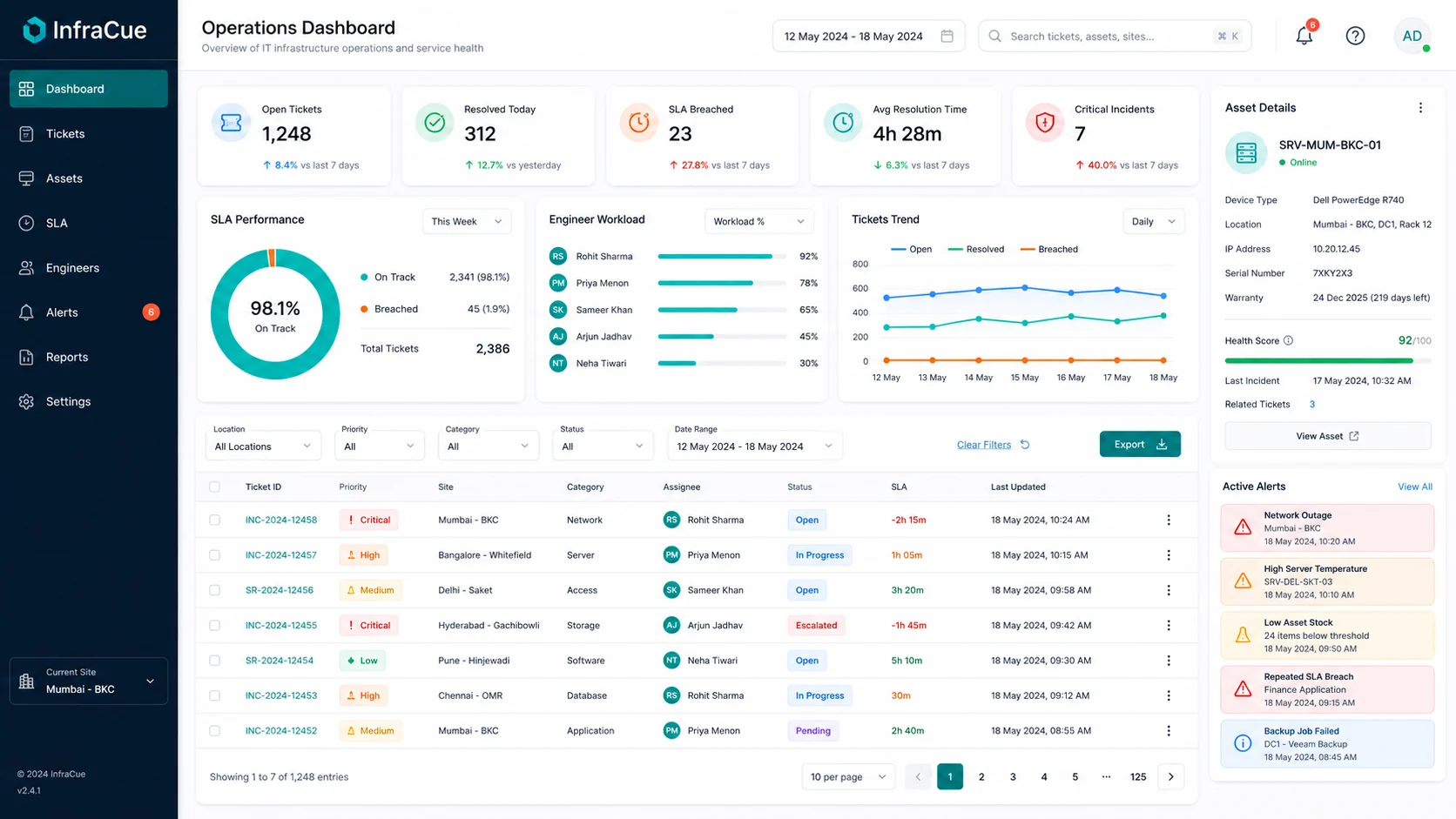
- Open SLAGo to Create/Edit → SLA.
- Choose priority and scopeSelect the priority, then select the applicable category and sub-category or a broader fallback scope.
- Set response and resolution minutesUse the service targets your team can actually operate.
- Review coverageCheck the SLA list for categories and sub-categories without an active matching rule.
Waiting states can pause work when your workflow has been configured to do so. Keep ticket status updates accurate so the SLA view stays meaningful.